Running Out of Disk Space? Here's How to Clean Up Your Windows PC
One of the most common issues I see on home and business computers is a nearly full hard drive. When your storage starts running low, Windows can become noticeably slower, updates may fail, and programs can behave unpredictably.
The good news is that many systems can recover tens or even hundreds of gigabytes of space without deleting important files.
Start with Windows Disk Cleanup
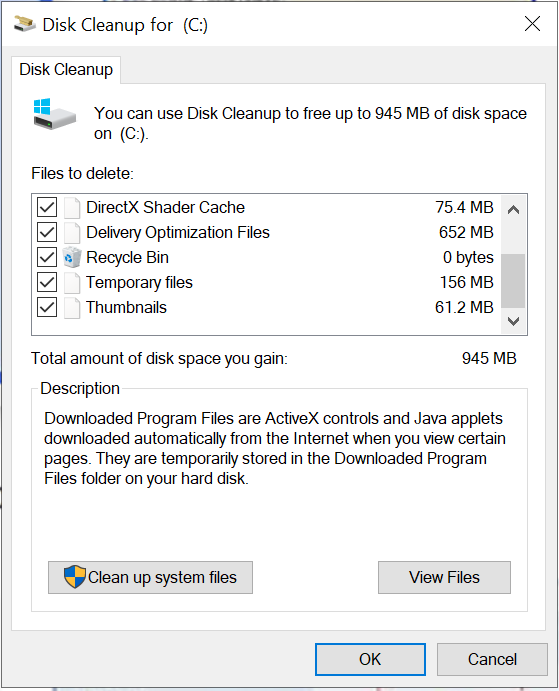
Windows includes a built-in tool called Disk Cleanup that can safely remove temporary files, old update files, log files, and other data that accumulates over time.
To use it, open the Start Menu, search for "Disk Cleanup," select your Windows drive (usually C:), and allow the scan to complete. Be sure to click Clean up system files for the most thorough cleanup.
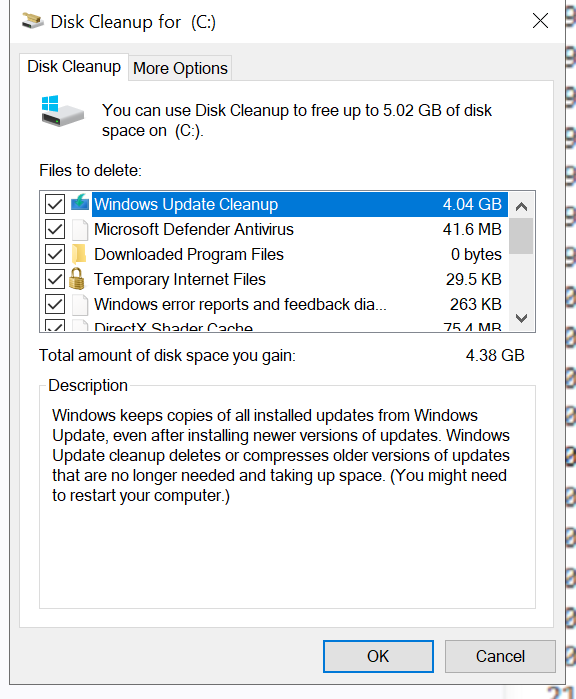
Many systems can reclaim several gigabytes immediately using this tool alone.
Use WinDirStat to Find Storage Hogs
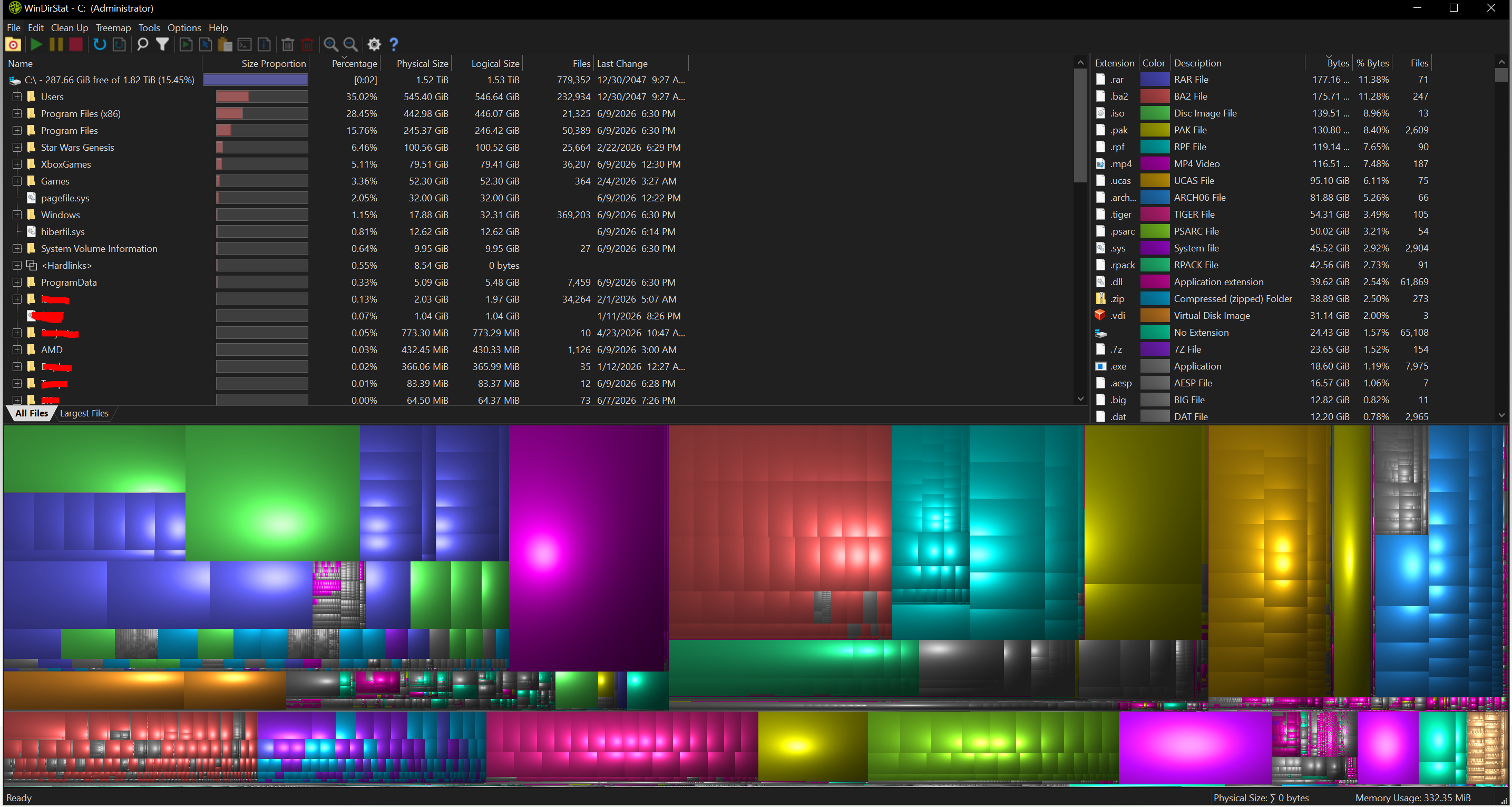
Sometimes the problem isn't Windows itself. Large downloads, forgotten video files, old backups, or game installations can consume massive amounts of space.
WinDirStat provides a visual map of your storage, making it easy to identify which folders and files are using the most disk space. This allows you to make informed decisions rather than guessing what to delete.
Before deleting anything, make sure you understand what the file is and whether it is still needed.
PatchCleaner for Windows Installer Files
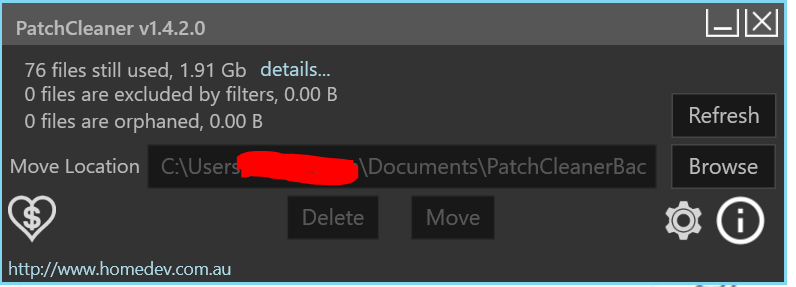
Over time, Windows can accumulate large amounts of installer and patch files that are no longer required.
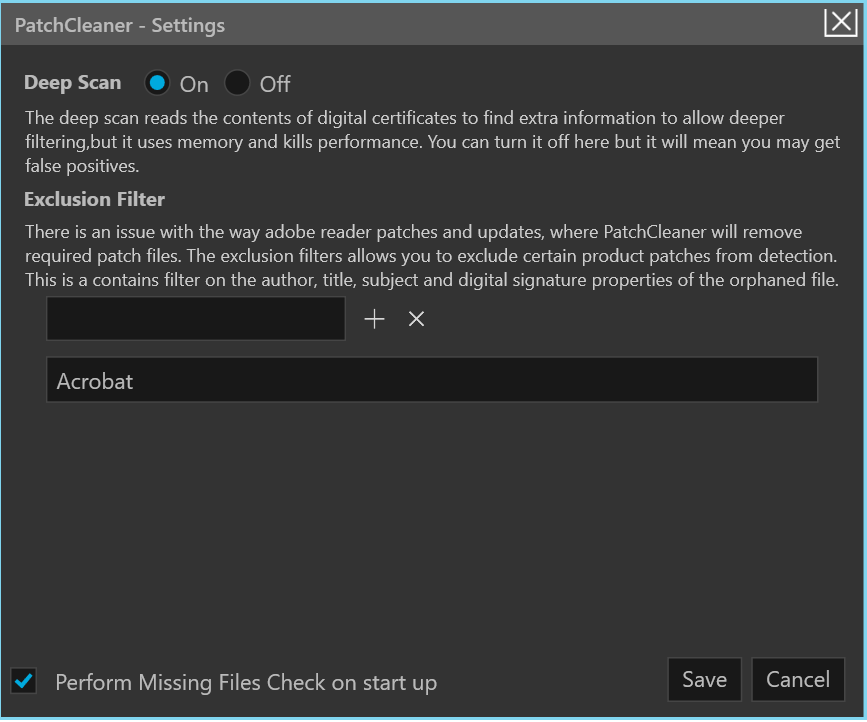
PatchCleaner helps identify orphaned installer files that may be safely archived or removed, potentially freeing significant storage space on older systems. I would recommend removing the built in Adobe filter to potentially cleanup more storage space. Hit the gear icon after opening PatchCleaner and you will be brought to a settings page, you should see Acrobat listed. Click on it and hit the X button that is to the right of the Plus button on the Exclusion Filter Field.
As with any cleanup utility, review the results carefully and create a backup before removing files.
GDU
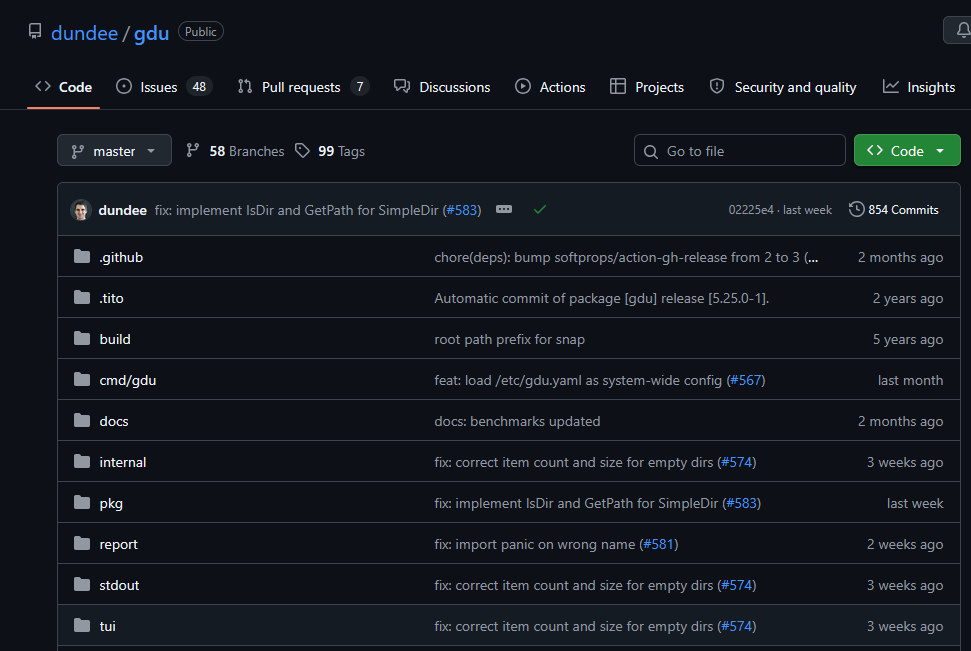
For users who want a fast and efficient way to analyze disk usage, GDU is another excellent option, however this is more of a SYSADMIN or PowerUserTool, it is a Command Line Interface Utility.
It scans drives quickly and helps identify large folders that may be consuming storage unnecessarily. This can be especially useful on systems with years of accumulated data.
Understanding where your storage is being used is often the first step toward solving disk space issues permanently.
How Much Storage Should the Average User Have?
In my experience, a 1TB SSD is the sweet spot for most home users today.
Between Windows updates, photos, videos, documents, applications, and backups, smaller drives often become cramped within a few years. A 1TB drive provides enough room for growth while remaining affordable and reliable.
Users who store large media collections, virtual machines, or gaming libraries may benefit from even larger drives.
Professional Drive Upgrades and Cloning Services
If your computer is constantly running out of space, simply cleaning up files may not be enough.
I offer storage upgrade services, SSD installations, operating system cloning, and data migration to help extend the life of your existing computer.
A properly installed SSD upgrade can dramatically improve system responsiveness while providing additional storage capacity for years to come.
The Consequences of Ignoring Low Disk Space
Running a drive at or near full capacity can create a variety of problems:
- Slow system performance
- Failed Windows updates
- Application crashes and instability
- Backup failures
- Reduced SSD lifespan and efficiency
- Difficulty saving files or installing software
Keeping at least 15–20% of your drive free helps Windows and your applications operate more efficiently.
Final Thoughts
Storage problems rarely fix themselves. The longer a drive remains full, the more likely you are to encounter performance issues, update failures, and data management headaches.
Tools such as Disk Cleanup, WinDirStat, PatchCleaner, and GDU can help identify and recover valuable storage space. When cleanup is no longer enough, upgrading to a larger SSD and cloning your existing operating system can provide a long-term solution without starting over from scratch.
If something feels off, verify recommendations independently and download software directly from official sources whenever possible.